

Connecting your Grolia Flush to Wi-Fi unlocks remote monitoring through your Grolia account and over-the-air software updates. Setup takes about a minute, right on the cabinet's touchscreen.
How to connect your Flush to Wi-Fi
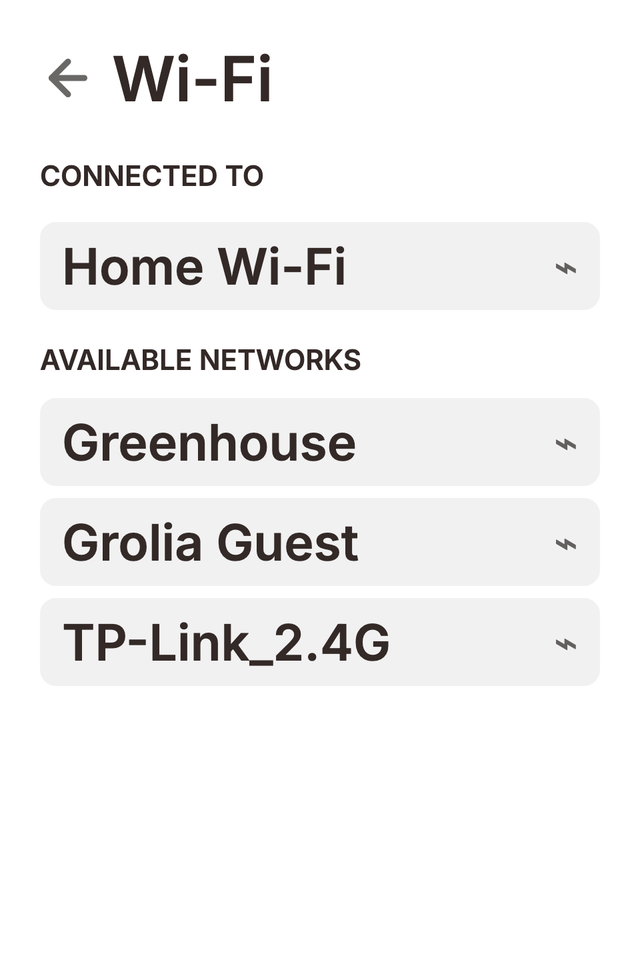
- On the unit, open Settings → Wi-Fi.
- Wait a moment while the unit scans for nearby networks, then choose your home Wi-Fi network from the Available networks list.
- Enter your Wi-Fi password with the on-screen keyboard and connect.
Once connected, the network shows under Connected to at the top of the Wi-Fi screen. The Flush remembers networks it has joined and reconnects automatically after a restart, so this is a set-and-forget step.
Don't see the Wi-Fi option?
On some firmware versions Wi-Fi ships behind a switch in Settings → Experimental. Turn it on and the Wi-Fi and Pairing entries appear in Settings. If your Flush won't connect after that, our troubleshooting guide covers the common fixes.
Disconnecting or forgetting a network
Tap the connected network to open its details. Disconnect drops the connection until you press Connect again; Forget removes the saved password entirely.