

Connecting your Grolia Flush to Wi-Fi unlocks remote monitoring through your Grolia account and over-the-air software updates. Setup takes about a minute, right on the cabinet’s touchscreen.
How to connect your Flush to Wi-Fi
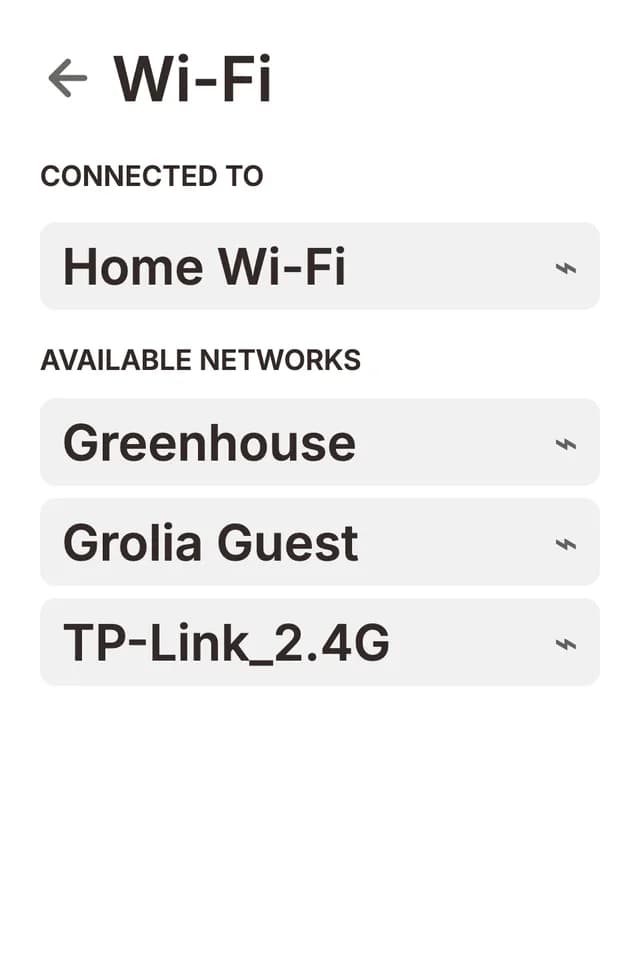
- On the unit, open Settings → Wi-Fi.
- Wait a moment while the unit scans for nearby networks, then choose your home Wi-Fi network from the Available networks list.
- Enter your Wi-Fi password with the on-screen keyboard and connect.
Once connected, the network shows under Connected to at the top of the Wi-Fi screen. The Flush remembers networks it has joined and reconnects automatically after a restart, so this is a set-and-forget step.
Your Flush needs a 2.4 GHz network
The Flush connects on 2.4 GHz Wi-Fi only; it can’t join a 5 GHz network. Most home routers broadcast both bands under one network name, and the Flush joins on 2.4 GHz automatically. If your network doesn’t appear in the list, or won’t connect:
- Check whether your router has a separate 2.4 GHz network (often named something like HomeWiFi_2.4G) and choose that one.
- If you only see one network name, log in to your router’s settings and check that 2.4 GHz Wi-Fi is turned on. Some mesh systems and guest networks run on 5 GHz only.
- Some routers let you give each band its own name, for example HomeWiFi_2.4G and HomeWiFi_5G. Connect the Flush to the 2.4 GHz one; your other devices can stay on 5 GHz.
- If your router’s security is set to WPA3 only, switch it to WPA2/WPA3 (sometimes called “mixed” or “transition” mode).
Can’t find your router settings? The login address, username and password are usually printed on a label on the modem or router. Common login addresses are 192.168.0.1, 192.168.1.1 and 10.0.0.138 (Telstra).
Don’t see the Wi-Fi option?
On some firmware versions Wi-Fi ships behind a switch in Settings → Experimental. Turn on Wi-Fi there and the Wi-Fi and Pairing entries appear in Settings. If your Flush Cabinet won’t connect after that, our troubleshooting guide covers the common fixes.
Disconnecting or forgetting a network
Tap the connected network to open its details. Disconnect drops the connection until you press Connect again; Forget removes the saved password entirely.