
Pairing links your Flush Cabinet to your Grolia account, so you can check on your grow, see live readings, and adjust settings from anywhere. It takes about a minute: the Grolia website gives you a 6-digit code, and you type it into your Flush Cabinet.
Before you start
- Your Flush Cabinet needs to be connected to Wi-Fi.
- You’ll need a Grolia account and your phone or computer to sign in to the Grolia website.
How to pair your Flush Cabinet
- On the Grolia website: sign in, open Devices, choose Pair a device, then Generate pairing code. You’ll see a 6-digit code. It expires after 10 minutes, so keep it open.
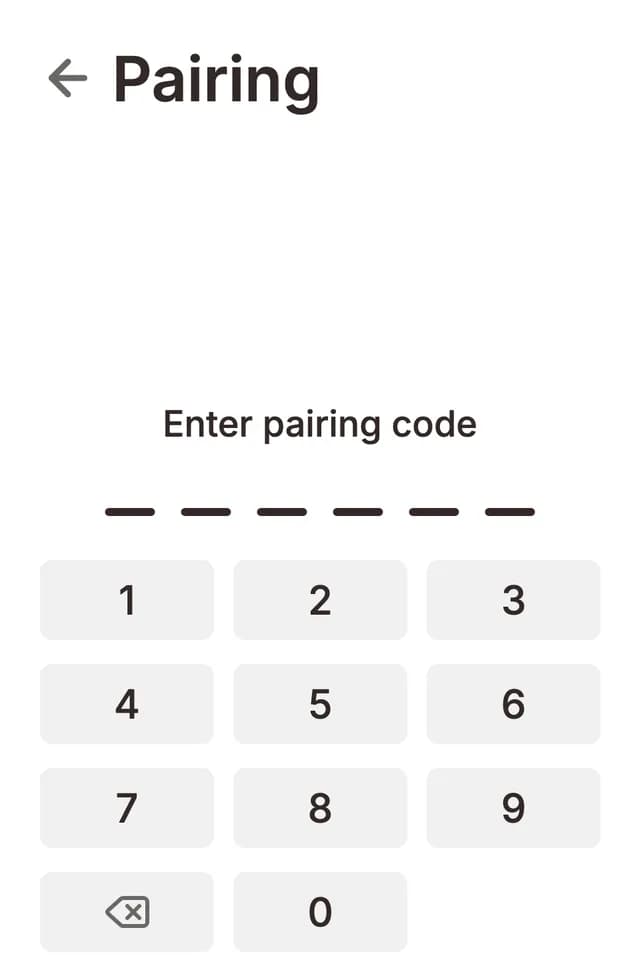
- On your Flush Cabinet: tap the Settings icon in the top-right corner of the Home screen, then choose Pairing.
- On your Flush Cabinet: type the 6-digit code from the website into the keypad, then tap the arrow button to submit.
When pairing succeeds, your Flush Cabinet shows the Grolia account it’s paired to, and it appears under Devices on the Grolia website with live temperature, humidity, and grow readings — handy for keeping an eye on your mushrooms remotely.
Code ran out before you finished? No worries — go back to the website and generate a new one. Each code works once, for 10 minutes.
Don’t see Pairing in Settings?
On some firmware versions Wi-Fi ships behind a switch in Settings → Experimental. Turn on Wi-Fi there and the Wi-Fi and Pairing entries appear in Settings. Then connect your Flush Cabinet to Wi-Fi before you pair.
Screen showing just the Flush logo?
That’s the screensaver. Depending on your mode it shows the Flush logo on its own, or the logo above temperature, humidity, and CO₂ readings. Tap the screen to wake it — Settings is the icon in the top-right corner of the Home screen.
Unpairing your Flush Cabinet
On your Flush Cabinet, open Settings → Pairing and choose Unpair to unlink it from your Grolia account — useful if you’re moving your Flush Cabinet to a different account or passing it on. You can pair again at any time.